If this is your first time, follow the steps in order. Use the contents to return to a step whenever you need help.
Extension version 1.6.60Screens checked
Screenshots show the English interface. Numbers and outlines are explanatory annotations. Colours and positions may differ with Chrome, your operating system, and the book.
1Before you start
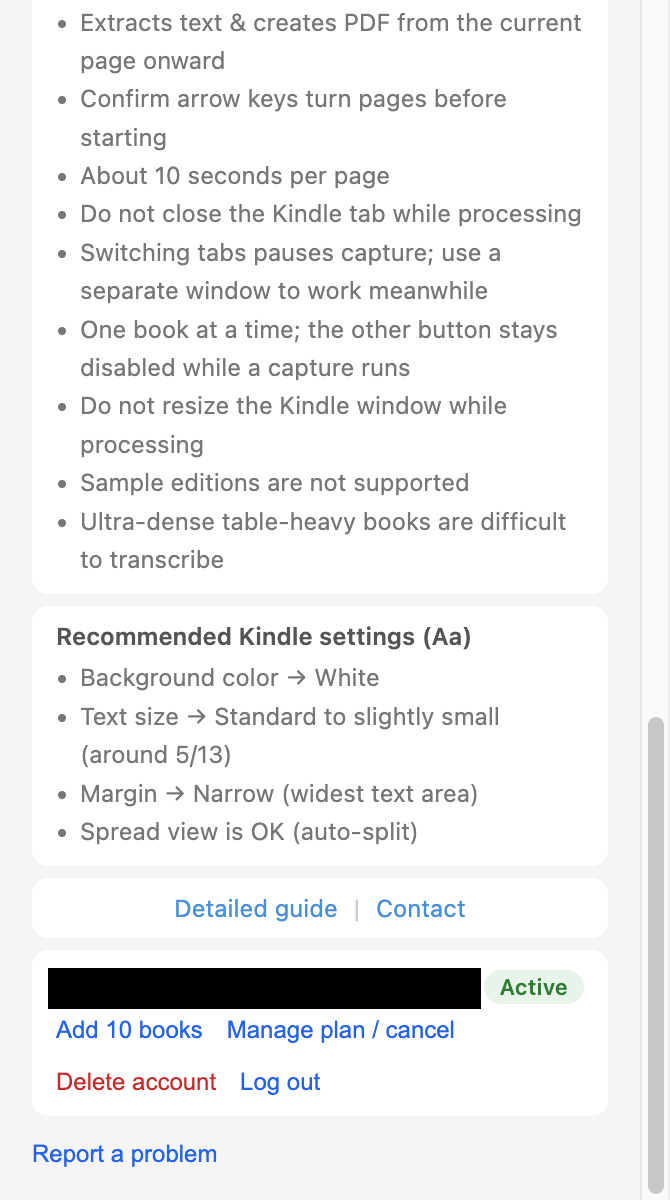
BookHalo is an extension for desktop Chrome. You do not upload a book into BookHalo. First, get a Kindle edition you can read in the browser.
1.1Prepare your computer and a Kindle edition you can read in the browser
Use Chrome on Windows or Mac with an internet connection. You cannot run a capture on a phone.
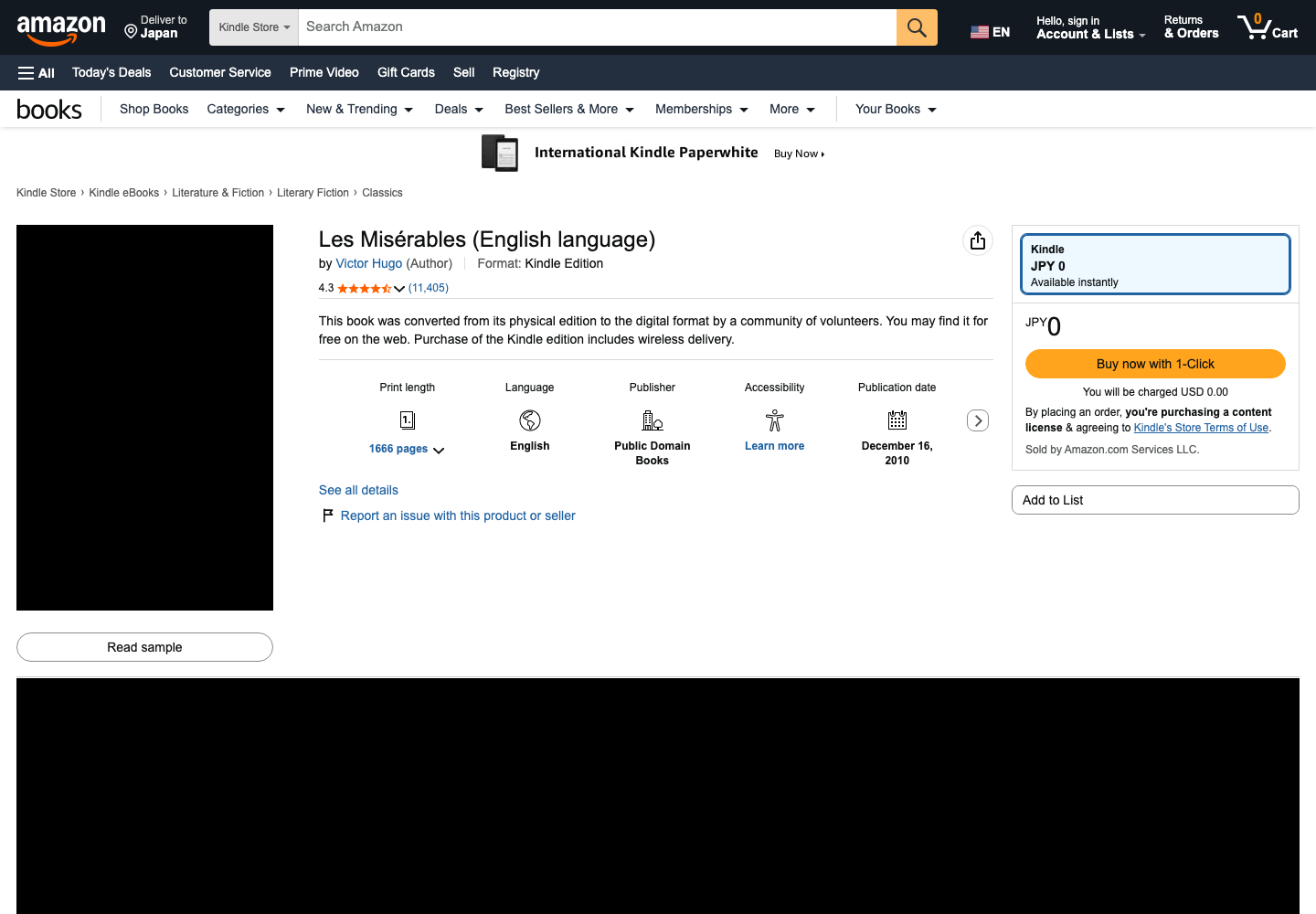
For a book you do not own yet, open its product page in your usual Amazon store and choose the Kindle edition. Check the format and the price, then get the free or paid Kindle edition. If you already own the book, you do not need to buy it again.
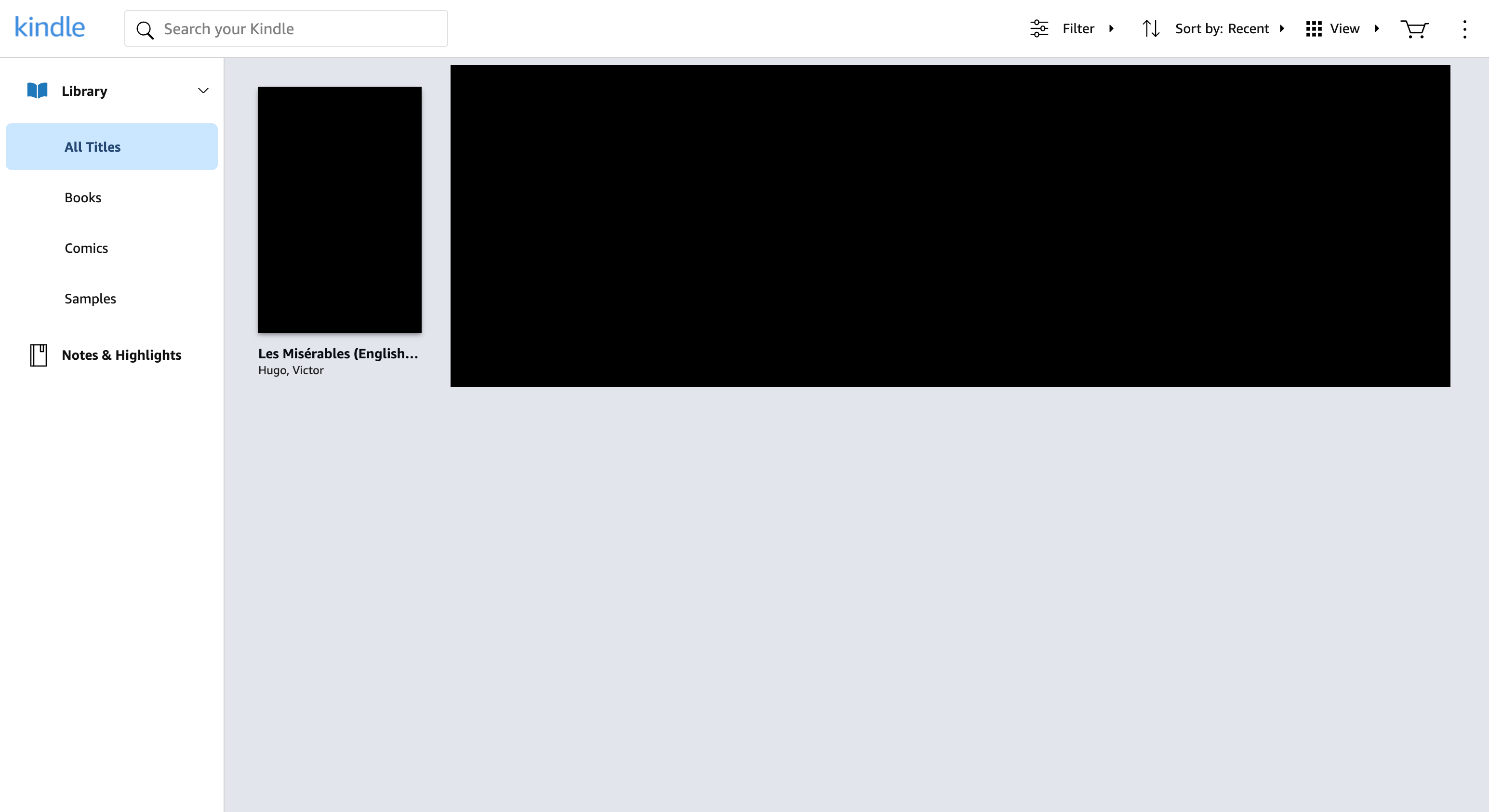
Sign in to Kindle Cloud Reader with the Amazon account that has the book. Use the store where you normally read that book; your interface language does not determine your store.
BookHalo does not sell books. Not every Kindle title can be read in the browser, and not every title is free.
Capture is limited to personal or household use of books you purchased or otherwise have rights or permission to copy and retain. Kindle Unlimited, Prime Reading, loans and samples are excluded unless you separately have those rights or permission.
1Prepare your computer and a Kindle edition you can read in the browserEnlarge image +
2Install and sign in
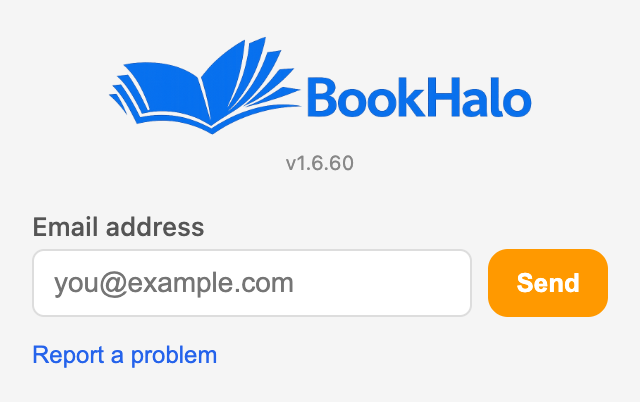
You need to sign in to BookHalo even for a free test. Sign-in uses a code sent by email, not a password.
2.1Add BookHalo to Chrome
Follow Add to Chrome on this page to the Chrome Web Store. Select the store's add button, then confirm the extension installation in Chrome's confirmation dialog.
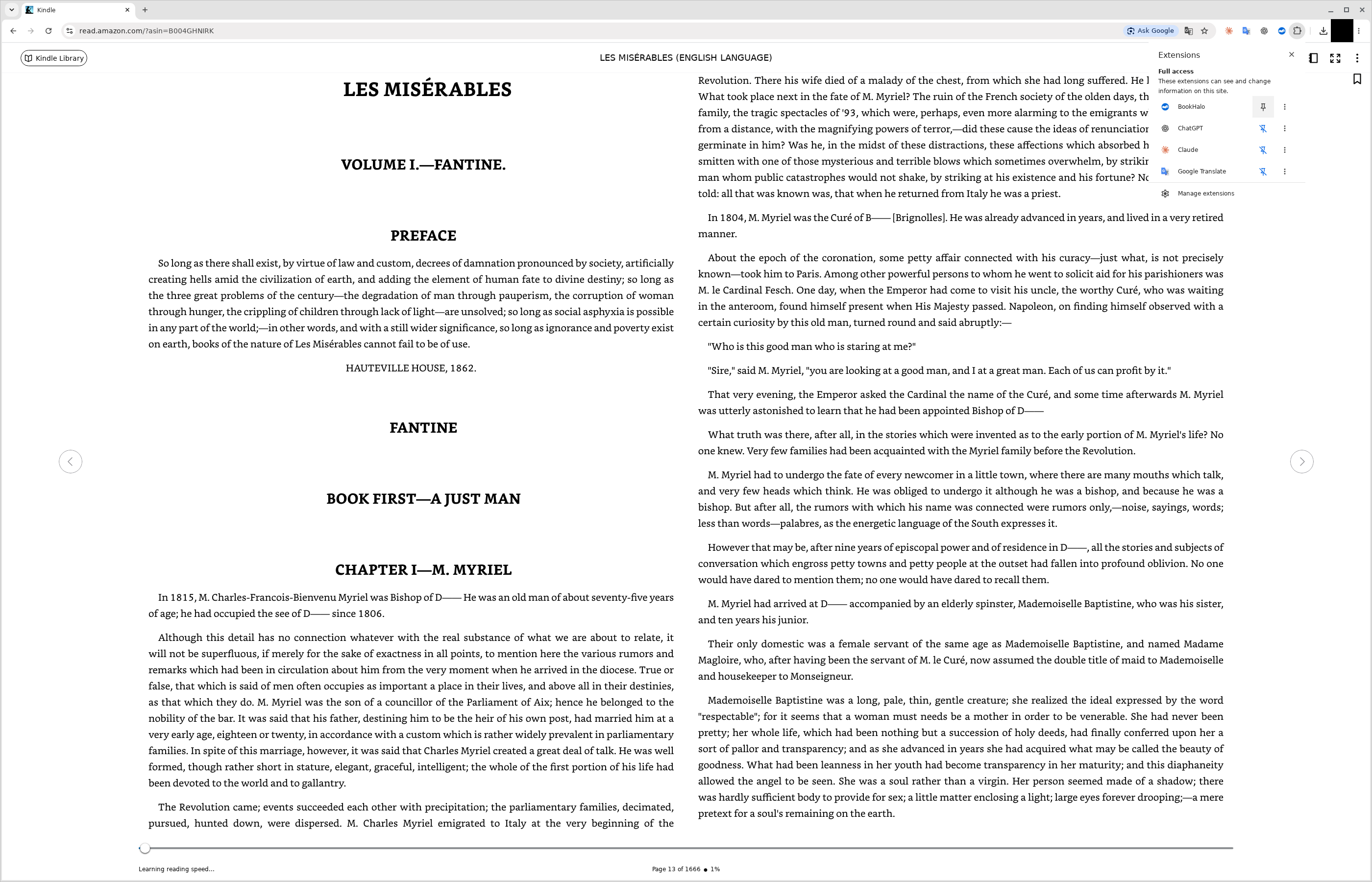
Open Chrome's puzzle-shaped extensions menu at the top right and select the pin beside BookHalo. If the icon is already visible, continue to the next step.
Once pinned, the BookHalo icon appears in the Chrome toolbar.
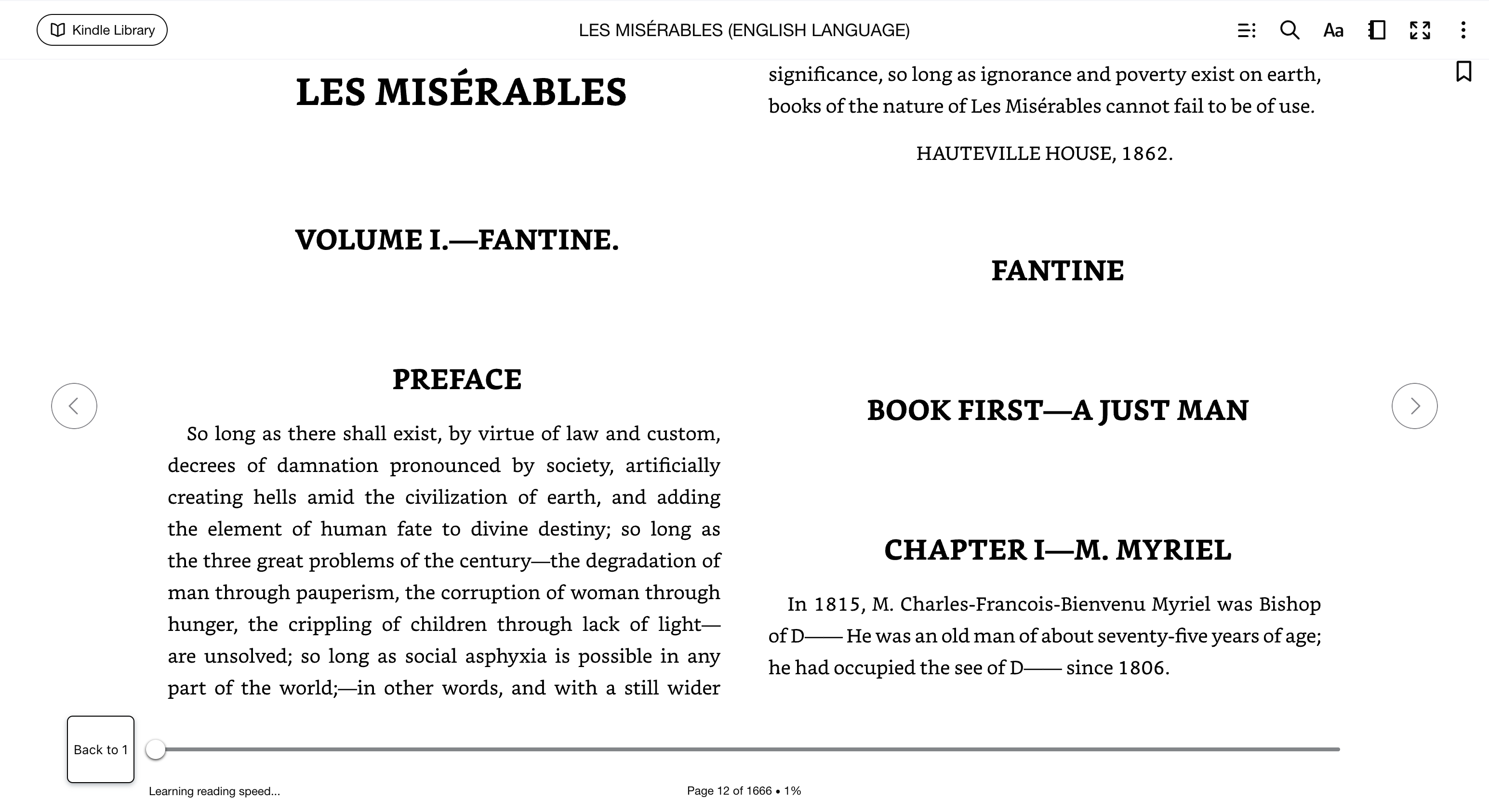
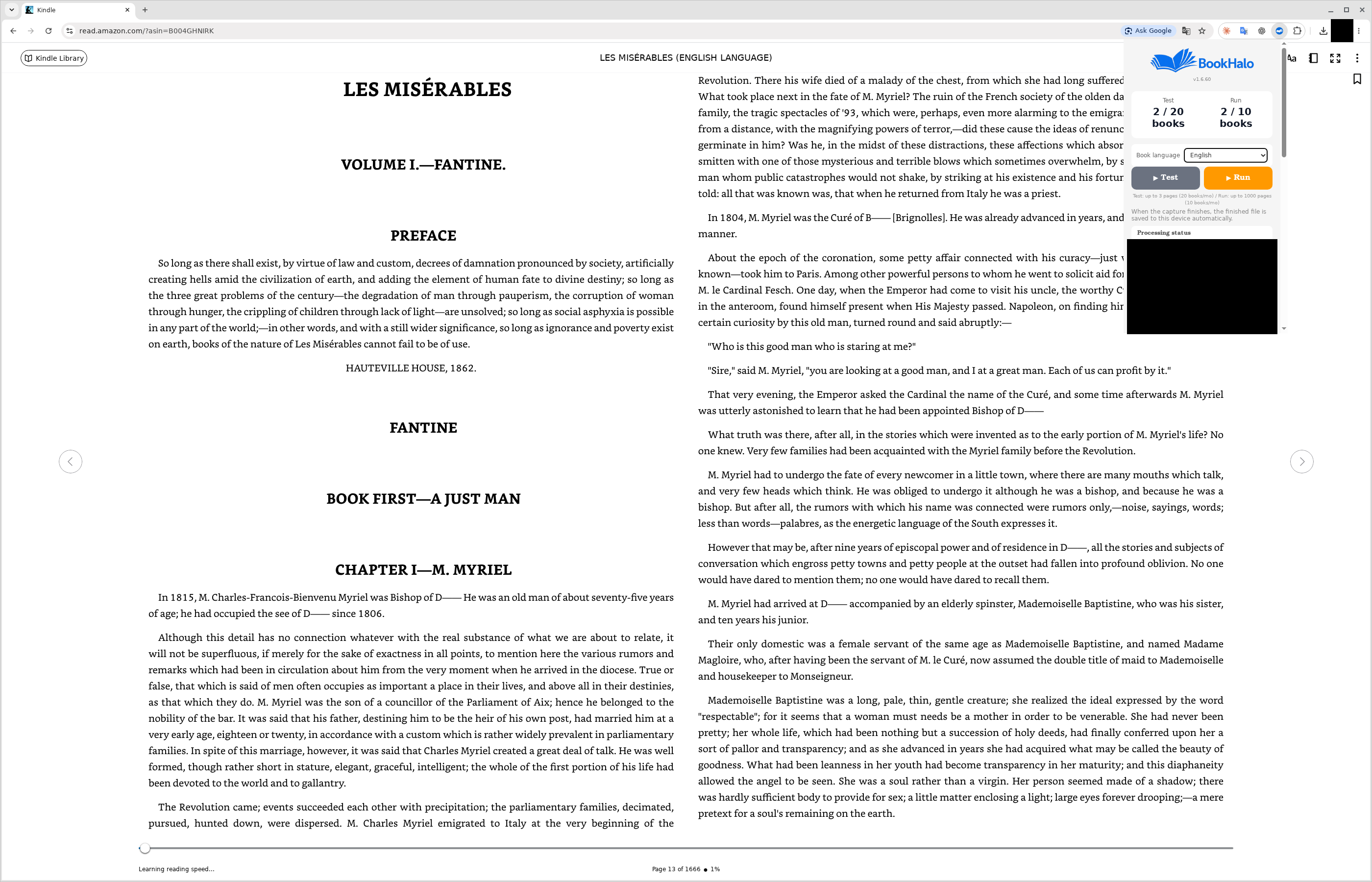
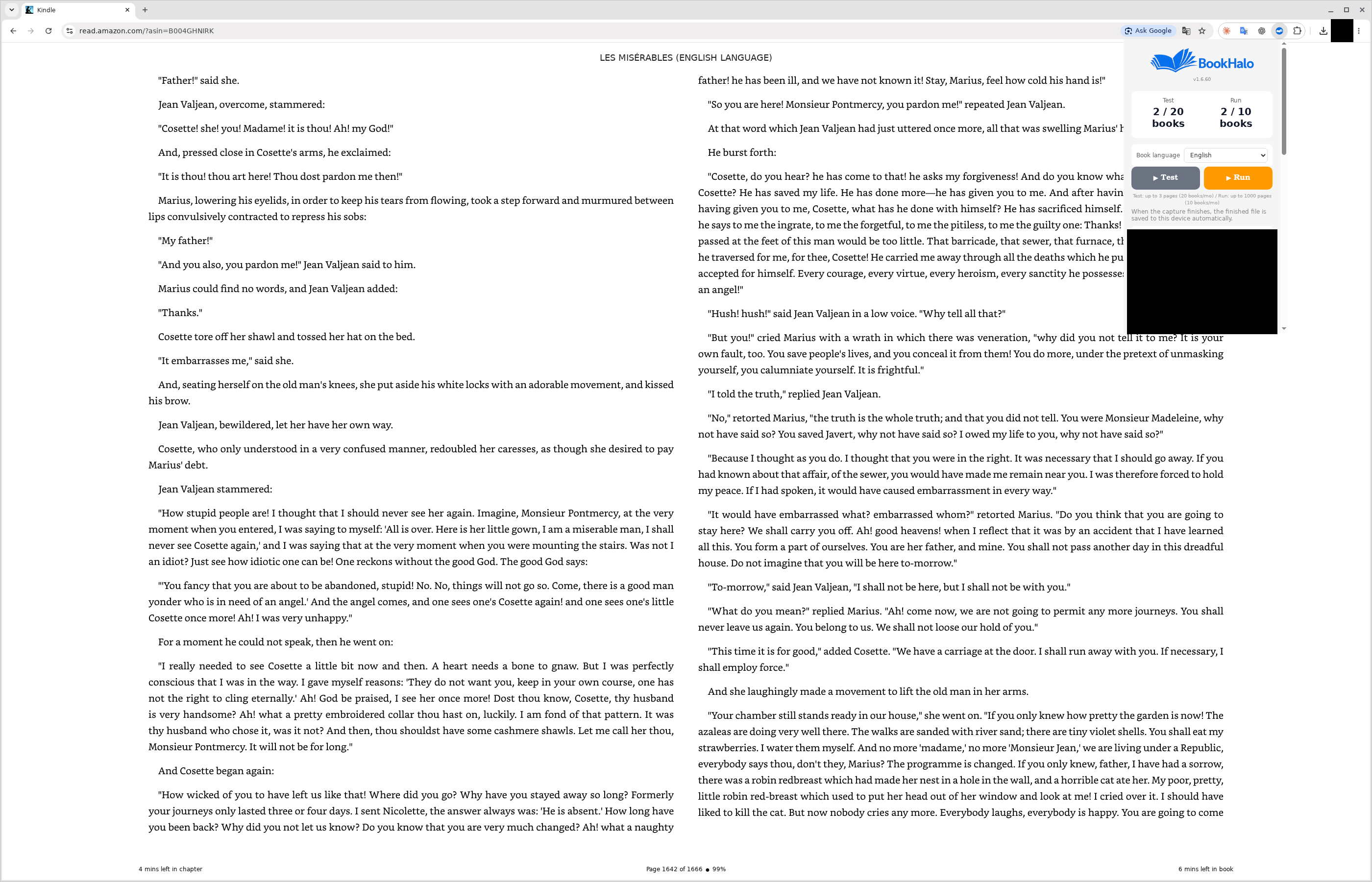
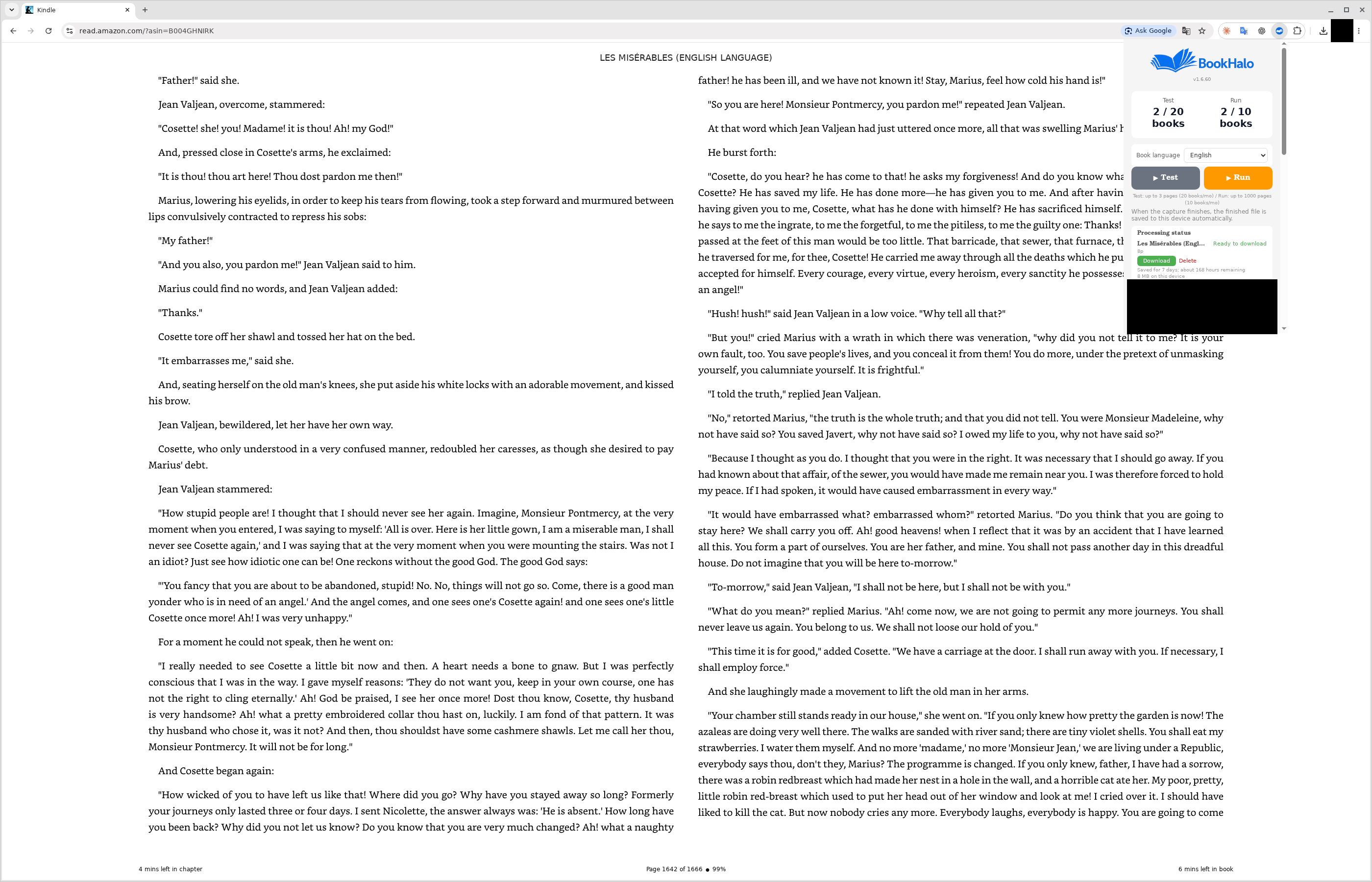
Leave the Kindle reading view open and select the BookHalo icon in the toolbar. The popup opens over the reading view; open the Book language dropdown there.
This is the language of the book's text, not the language of the interface. The screenshot shows Les Misérables in English, so the choice is English. For a book in another language, select that language instead.
If you change Kindle's font size or margins, test the new display before a full run.
The test checks how this book's text is captured. It is not a trial of using a whole book with AI, or a guarantee of quality on every page.
4.1Select Test
Start at a page with representative text and select Test. This captures up to 3 pages for free, with a limit of 20 test books per month.
On the first run, preparing transcription may take some time before capture starts. Keep the Kindle tab and Chrome open while the preparation message is displayed.
During capture, keep the Kindle tab selected in its window and leave the pages alone. The Kindle window does not have to be the frontmost window on your computer. Capture completion and file completion are separate stages.
The ZIP downloads when it is ready. Open Chrome's downloads list and find the completed ZIP. If you cannot see it, enter chrome://downloads in the address bar.
For the completed ZIP, choose Show in folder or Show in Finder to open its location. If Chrome asks where to save each file, finish that save dialog first.
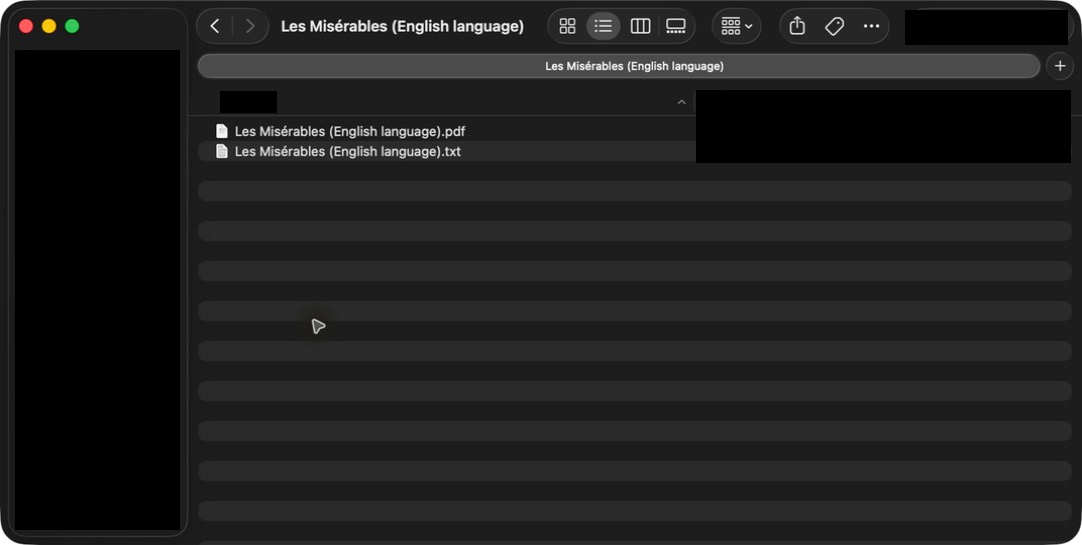
Windows: right-click the ZIP, select Extract All, and open the extracted folder. Mac: double-click the ZIP and open the folder it creates.
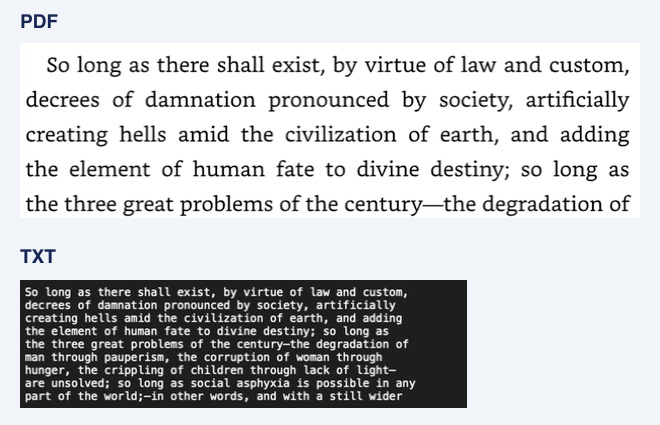
The extracted folder holds a TXT file with the transcribed text and a reference PDF containing images of the captured pages.
Double-click the TXT file and then the PDF file to open them. If asked to choose an app, select a text editor for TXT and a PDF viewer for PDF.
Compare the same passage in both, checking for missing characters, garbled text, and reading order. Check representative pages. If other parts have very different layouts, such as tables or ruby text, test those positions separately as needed.
If the result is hard to read, check the Book language selection and Kindle display settings, then test again before a full run.
After the test, reset your starting position. Otherwise, the full run will begin where the test left off.
5.1Check your subscription
If you have not subscribed, follow the subscription prompt in BookHalo and review the price and terms. The monthly plan includes 10 books per month, up to 1,000 pages per book.
Check the amount shown at checkout before subscribing. After payment, return to BookHalo and wait for your subscription to appear. Skip this step if you already subscribe.
5.2Check the starting position and book language, then select Run
Return Kindle to the page where you want the capture to start. Check that it is not still where the test finished.
In the BookHalo popup, check that Book language matches this book. For Les Misérables in English that is English. For a book in another language, select that language instead.
Then select Run. During capture, keep the Kindle tab selected in its window, and do not turn pages or change display settings. To end early, use Stop in BookHalo.
1Check the starting position and book language, then select RunEnlarge image +
6When can you use your computer again?
What you can do depends on the processing stage. Use the on-screen status to check whether capture has finished.
6.1Read the processing status messages
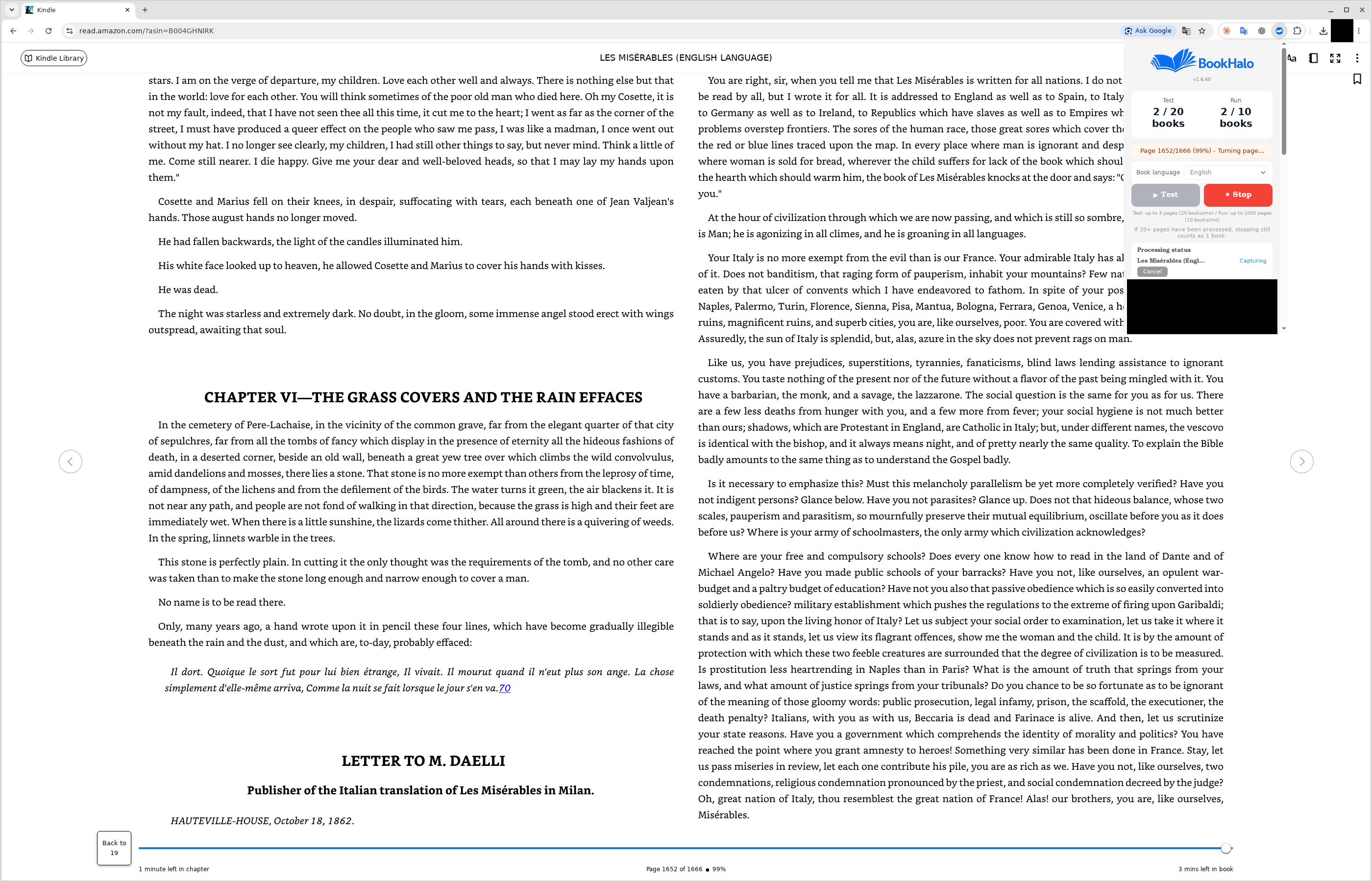
Check the processing stage in “Processing status” in the BookHalo popup. When the popup is closed, a progress number also appears on the BookHalo toolbar icon.
While it says Capturing, keep the Kindle tab selected in its window. Once the status says capture is complete and transcription is in progress, you can use other tabs and apps.
While it says Transcribing, keep the Kindle tab and Chrome open. Avoid reloading the tab, putting the computer to sleep, or shutting it down. Once the file is saved, you can close the Kindle tab.
Completion time varies with page count, book language, and computer performance. When processing is quick, the files may be saved before you see Transcribing. If so, continue to checking the completed files.
12Read the processing status messagesEnlarge image +Read the processing status messages · 1× · 0:14 Real operation at normal speed. Timing is an example from the recording environment.
1Capturing
Keep the Kindle tab selected in its window. Leave the pages and display settings alone.
2Transcribing
Once capture is complete, you can work elsewhere. Keep the Kindle tab and Chrome open.
3Saved
Open the downloaded ZIP. If saving failed, download it again from Processing status.
6.2What happens on screen during capture
BookHalo turns the pages itself and captures the displayed page one page at a time. You do not need to turn pages manually.
The Kindle pages change automatically as BookHalo captures them. Check the processing stage in the BookHalo popup; the toolbar icon also shows numerical progress.
During capture, do not turn pages manually, change the font size or margins, or resize the window. Changing the display can spoil the result.
12What happens on screen during captureEnlarge image +What happens on screen during capture · 1× · 0:12 Real operation at normal speed. Timing is an example from the recording environment.
6.3Use your computer for something else during capture
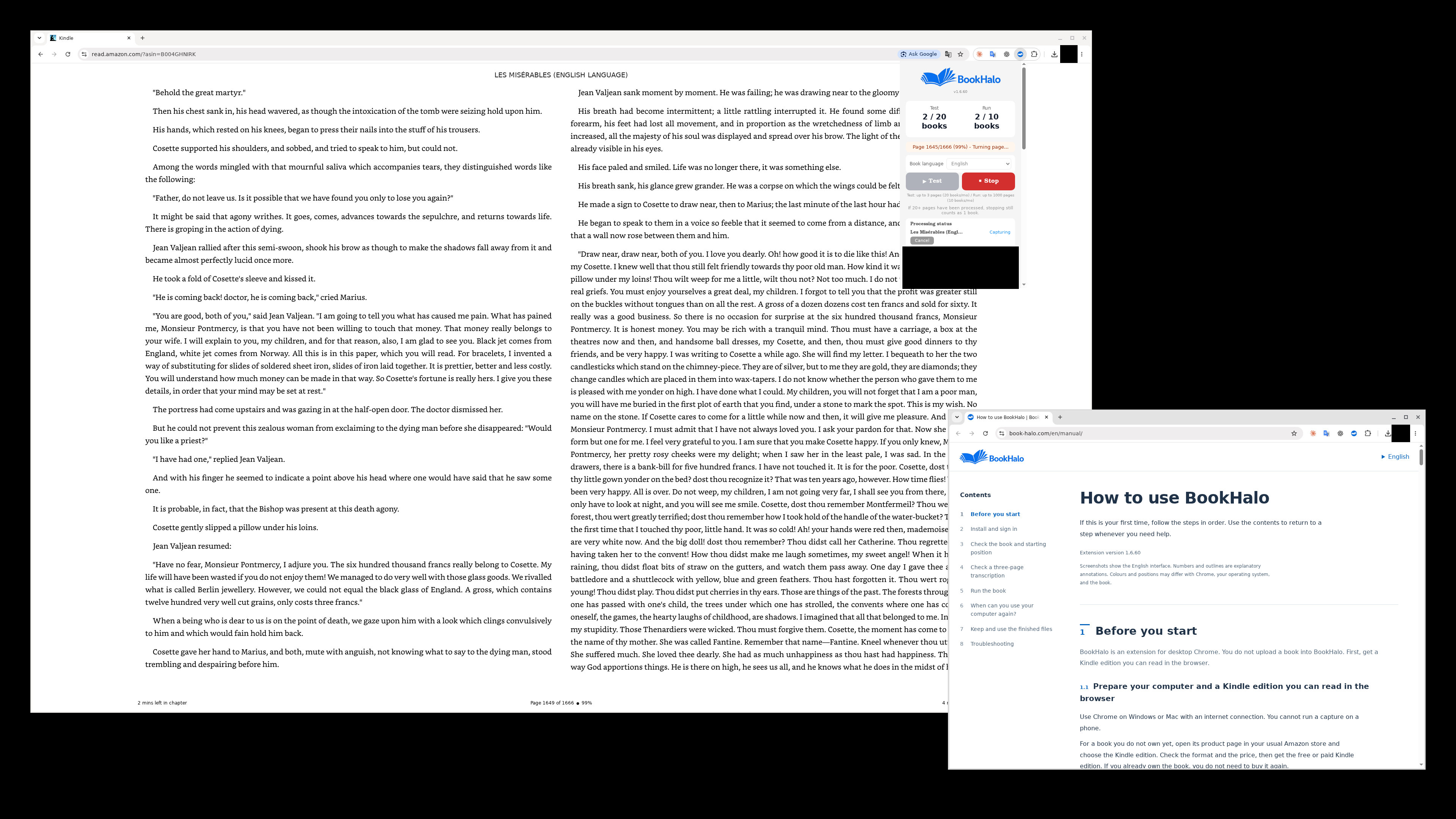
If you plan to do other work, prepare before starting: drag the Kindle tab out of its window to create a separate Chrome window for Kindle.
Keep the Kindle tab selected in that window. BookHalo looks at the selected tab inside that window, so capture continues while you work in a different window.
Avoid switching the Kindle window to another tab, minimising it, closing it, reloading it, or letting the computer sleep.
Once capture is complete, you can use other tabs and apps freely. Keep the Kindle tab and Chrome open until the file has been saved.
12Use your computer for something else during captureEnlarge image +Use your computer for something else during capture · 1× · 0:12 Real operation at normal speed. Timing is an example from the recording environment.
7Keep and use the finished files
The ZIP downloads when it is ready. Its location follows your Chrome download settings, and you open it the same way as in the test.
7.1Check the saved files and use them
Open the full-run ZIP the same way as the test ZIP. Confirm the download in Chrome's downloads list, open its location, and extract it.
Close the Kindle tab or Chrome only after Chrome shows the download as complete and you have found the saved ZIP.
The TXT contains the transcription. The reference PDF helps you compare it with the captured pages. Keep the downloaded files wherever you need them.
Links at the end of this manual show examples of using the TXT with AI.
Open BookHalo on the same computer and Chrome profile used for capture. Find the book under Processing status and select Download. If automatic saving failed, select Save again instead.
Data for re-downloading is retained for 7 days. Check the remaining time on screen, and keep the files you downloaded somewhere suitable.
Another computer or Chrome profile cannot directly retrieve the files stored on the original device.
Start with the checks for the step where you are stuck.
The sign-in email or code does not work
Check the email address, spam folder, and mail filtering settings. If you requested another code, use the most recent one. To change the address, return to the email entry screen.
The Kindle button does not work, or my book is missing
Open Kindle Cloud Reader directly in a normal Chrome tab using the Amazon store where you read the book. Check the Amazon account and open the book's pages from the library. You do not need to move the book into BookHalo.
It does not start, or stops at zero pages
Open the book's pages, not the library. If Kindle displays a confirmation or warning, read it and resume only after checking that the issue is resolved. Do not bypass restrictions. Click the text and check that the arrow key in the reading direction turns the page. Return to the starting position and try again.
Processing stopped partway through
Check BookHalo's progress and error message. During capture, select the Kindle tab again in its window. If transcription is running, keep the tab open and wait. If there is an error, read it and move to the intended restart position before trying again.
The text is garbled or out of order
Check that Book language matches the text. Adjust Kindle's font size, margins, or background and test the same passage again. Use the reference PDF to check tables and complex layouts.
It finished, but I cannot find the file
Check Chrome's downloads list for completion, failure, or a pending save dialog. If saving failed, download again from Processing status on the computer and profile used for capture.
What should I include when asking for help?
Use the extension's problem report or contact page. Include the step where you got stuck, the error message, BookHalo version, and operating system. Do not send passwords or sign-in codes.